
Some WooCommerce stores need to keep things simple: one product per order, no exceptions. Maybe you’re selling deposits, bookings, subscriptions, or high-value items where mixing products in a single cart causes fulfillment headaches. Whatever the reason, you don’t need a paid plugin to enforce it a small snippet handles it cleanly.
Here are two ways to do it, depending on how you want the store to behave when a customer tries to add a second product.
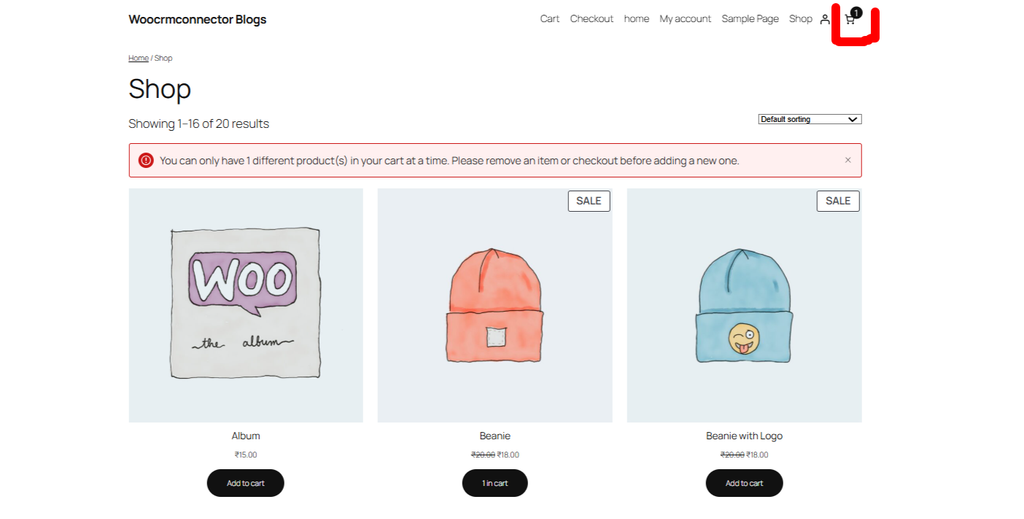
Method 1: Block the Second Product (Show an Error)
This approach stops the customer from adding a new product if the cart isn’t empty, and shows a clear error message instead.
/**
 * Restrict WooCommerce cart to only 1 product at a time.
 * Behavior: DENY — blocks adding a new product if the cart is not empty.
 */
add_filter( 'woocommerce_add_to_cart_validation', 'wpcodex_limit_cart_to_one_product', 10, 3 );
function wpcodex_limit_cart_to_one_product( $passed, $product_id, $quantity ) {

    if ( ! WC()->cart->is_empty() ) {
        wc_add_notice(
            __( 'Only 1 product is allowed in your cart at a time. Please checkout or remove the current item before adding a new one.', 'woocommerce' ),
            'error'
        );
        $passed = false;
    }

    return $passed;
}
Use this when you want the customer to make a deliberate choice remove what’s in the cart, or check out first, before adding something new.
Method 2: Auto-Replace the Cart
This approach skips the error message entirely. Instead, it quietly empties the cart and adds the new product in its place.
/**
 * Restrict WooCommerce cart to only 1 product at a time.
 * Behavior: REPLACE — automatically empties the cart before adding the new product.
 */
add_action( 'woocommerce_add_to_cart', 'wpcodex_replace_cart_with_new_product', 1, 6 );
function wpcodex_replace_cart_with_new_product( $cart_item_key, $product_id, $quantity, $variation_id, $variation, $cart_item_data ) {

    global $woocommerce;

    foreach ( $woocommerce->cart->get_cart() as $cart_key => $cart_item ) {
        if ( $cart_key !== $cart_item_key ) {
            $woocommerce->cart->remove_cart_item( $cart_key );
        }
    }
}
Use this when a smoother, uninterrupted shopping flow matters more than warning the customer for example, a “configurator” style store where each new selection should simply replace the last one.
Method 3: Let the Store Owner Set the Limit (No Hardcoding)
Methods 1 and 2 both hardcode the limit to exactly one product. But what if you want to change that number later allow 2 or 3 products instead of 1 without editing code every time? This method adds a real setting inside WooCommerce itself.
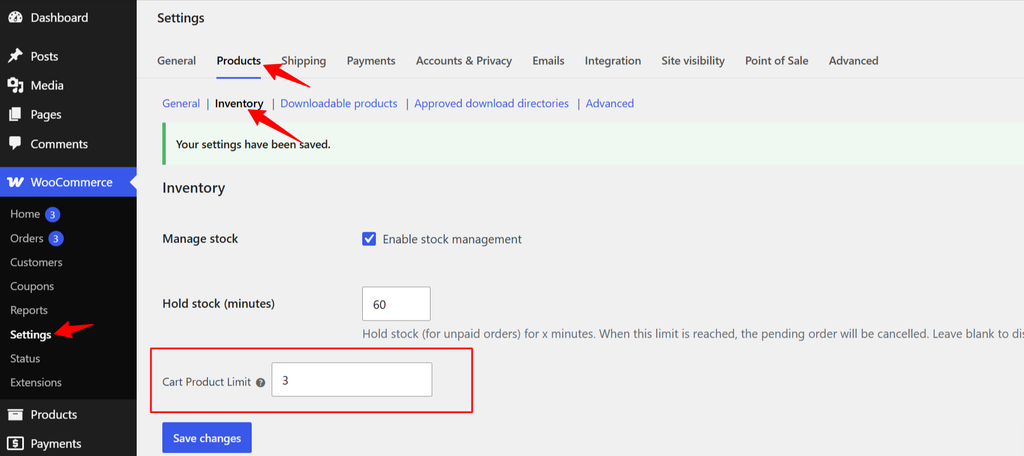
Step 1 – Add a “Cart Product Limit” field to WooCommerce → Settings → Products → Inventory
/**
 * Add a "Cart Product Limit" field to WooCommerce > Settings > Products > Inventory.
 * Admin can set how many different products are allowed in the cart at once.
 */
add_filter( 'woocommerce_inventory_settings', 'wpcodex_add_cart_limit_field' );
function wpcodex_add_cart_limit_field( $settings ) {

    $settings[] = array(
        'title'             => __( 'Cart Product Limit', 'woocommerce' ),
        'desc'              => __( 'Maximum number of different products allowed in the cart at once. Leave empty or 0 for unlimited.', 'woocommerce' ),
        'id'                => 'wpcodex_cart_product_limit',
        'type'              => 'number',
        'default'           => '1',
        'desc_tip'          => true,
        'custom_attributes' => array( 'min' => '0' ),
    );

    return $settings;
}
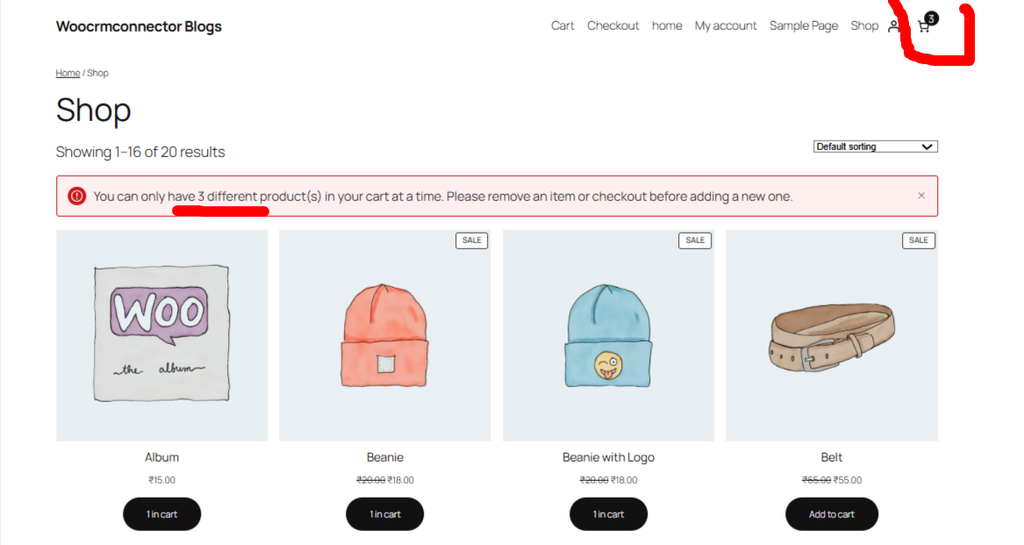
Step 2 – Use that setting to control the cart validation
/**
 * Restrict WooCommerce cart based on the admin-defined product limit.
 */
add_filter( 'woocommerce_add_to_cart_validation', 'wpcodex_limit_cart_dynamic', 10, 3 );
function wpcodex_limit_cart_dynamic( $passed, $product_id, $quantity ) {

    $limit = (int) get_option( 'wpcodex_cart_product_limit', 1 );

    if ( $limit <= 0 ) {
        return $passed; // 0 = unlimited, skip the check
    }

    $cart_count = count( WC()->cart->get_cart() );

    if ( $cart_count >= $limit ) {
        wc_add_notice(
            sprintf(
                __( 'You can only have %d different product(s) in your cart at a time. Please remove an item or checkout before adding a new one.', 'woocommerce' ),
                $limit
            ),
            'error'
        );
        $passed = false;
    }

    return $passed;
}
Add both parts of this snippet together (not alongside Method 1 this replaces it). Once active, go to WooCommerce → Settings → Products → Inventory and you’ll see a new “Cart Product Limit” field at the bottom of the page. WooCommerce handles saving this automatically since it’s registered through WooCommerce’s own Settings API there’s no extra save handler to write.
Where to Add This Code
Pick one method (not more than one at a time), and add it to:
- Your child theme’s
functions.php, or - A site-specific plugin (recommended it survives theme updates), or
- A code snippets plugin like WPCode or Code Snippets
Troubleshooting
The error message isn’t showing up (Method 1 or 3). This usually happens because your theme uses AJAX add-to-cart. The notice is added correctly, but AJAX doesn’t automatically refresh the notice area on some themes. If this happens, check whether your theme supports wc_print_notices via AJAX, or test with AJAX add-to-cart temporarily disabled to confirm the snippet itself is working.
Does this work with variable products? Yes both snippets validate at the cart level, not the product level, so they apply the same way whether the product is simple or variable.
Does this replace the “Sold Individually” setting? No, and it’s worth knowing the difference. “Sold Individually” (a built-in WooCommerce setting) limits the quantity of one specific product to 1, but still allows other products in the same cart. These snippets limit the entire cart to one product total, regardless of quantity settings.
FAQ
Can I limit the cart to one product only for certain categories, not the whole store?
Yes, but it requires modifying the snippet to check the product’s category before blocking or replacing a straightforward addition if you’re comfortable with basic PHP conditionals.
Will this affect existing items already in someone’s cart from a previous session?
No. The snippet only runs when a new “add to cart” action happens it won’t remove items a returning customer already has sitting in their cart.
Should I use Method 1 or Method 3 if I only ever want a limit of 1?
Either works identically out of the box. The difference only matters if you think you might need to change the limit later Method 3 saves you from having to edit code again, since the number lives in a WooCommerce setting instead of in the function itself.