



Google Maps Route Monitoring & Traffic Analytics for WordPress
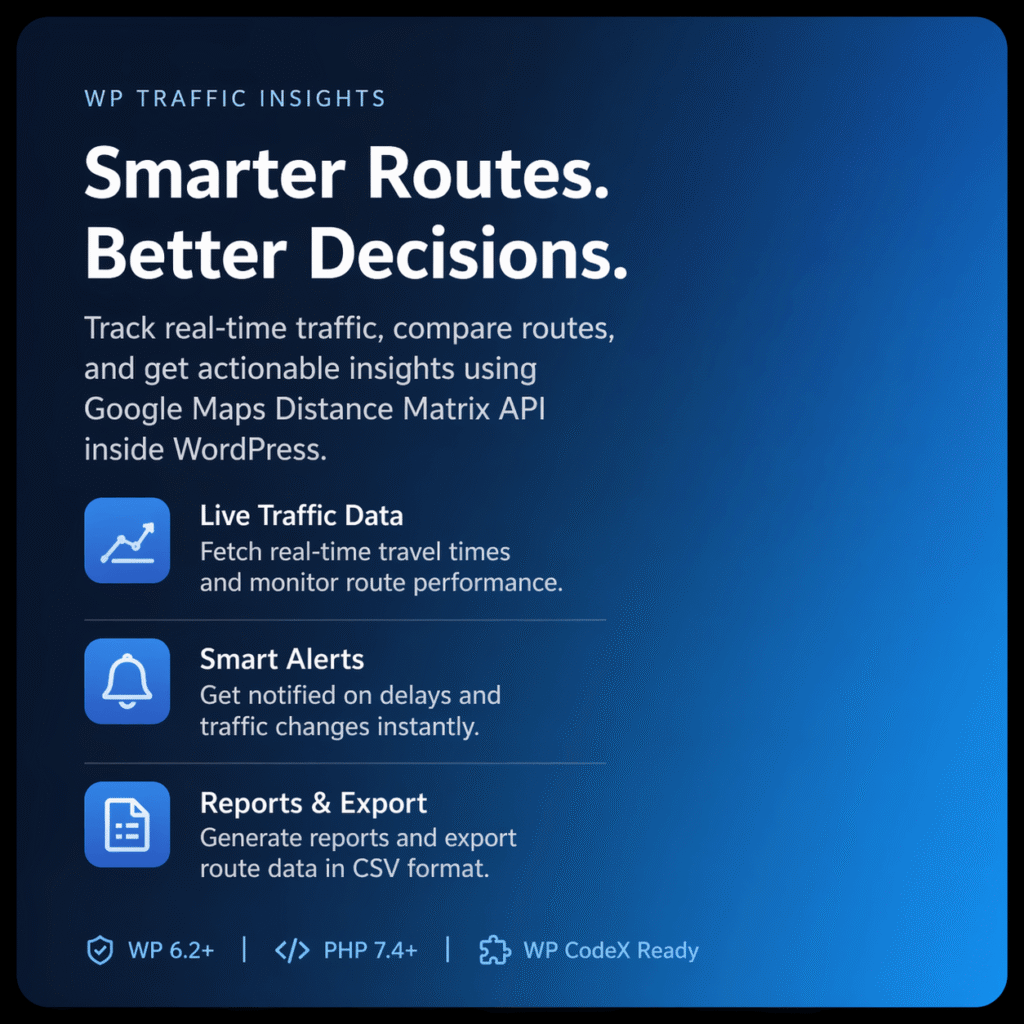
WP Traffic Insights is a WordPress plugin that connects your website to the Google Distance Matrix API and turns live road traffic data into actionable dashboards, alerts, and reports — all inside your WordPress admin panel.
Instead of manually checking Google Maps or switching between external tools to monitor route conditions, WP Traffic Insights automatically collects travel time data for your defined business routes on a scheduled basis, displays trends in visual charts, sends smart alerts when traffic conditions change, and lets you export the data as CSV for further analysis or client reporting.
Built for logistics businesses, delivery operations, agency teams, and developers who need structured traffic intelligence without building a custom API integration from scratch.

Why Your Business Needs Route Traffic Data Inside WordPress
For any business that depends on road travel — whether managing a delivery fleet, coordinating field staff, running a courier service, or simply helping employees plan commutes — knowing current and historical traffic conditions on specific routes is operationally valuable.
The problem is that gathering this data reliably requires either manually checking Google Maps at regular intervals (time-consuming and inconsistent) or building a custom integration with the Google Maps API (expensive and complex). Most small and medium businesses do neither, which means route planning is based on guesswork.
WP Traffic Insights solves this by providing a ready-made Google Distance Matrix API integration inside WordPress. Define your routes once, and the plugin handles everything else — automatic data collection, trend analysis, smart alerting, and exportable reporting.
WP Traffic Insights Best For ?
➜ Logistics and delivery businesses
➜ Agencies managing client dashboards
➜ Office teams checking commutes
➜ Developers using API traffic data
➜ Businesses needing alerts and analytics
➜ Managers needing executive summaries
Get route tracking and traffic insights using Google Distance Matrix API with live monitoring and reporting tools.
Key Features
Google Distance Matrix API Integration
WP Traffic Insights connects to the Google Distance Matrix API — one of Google’s official, production-grade mapping services — to retrieve real-time and historical travel time data for any road route you define. The plugin handles authentication, request formatting, and response parsing. All you need is a Google Maps API key with Distance Matrix enabled.
Custom Route Management
Define as many business routes as you need. Each route is configured with an origin, destination, and optional travel mode (driving, walking, cycling, transit). Routes can be named for easy identification — for example, “Warehouse to City Centre” or “Client Office — Morning Route.” Default routes can be set as global baselines for comparison.
Live Traffic Monitoring with One-Click Fetch
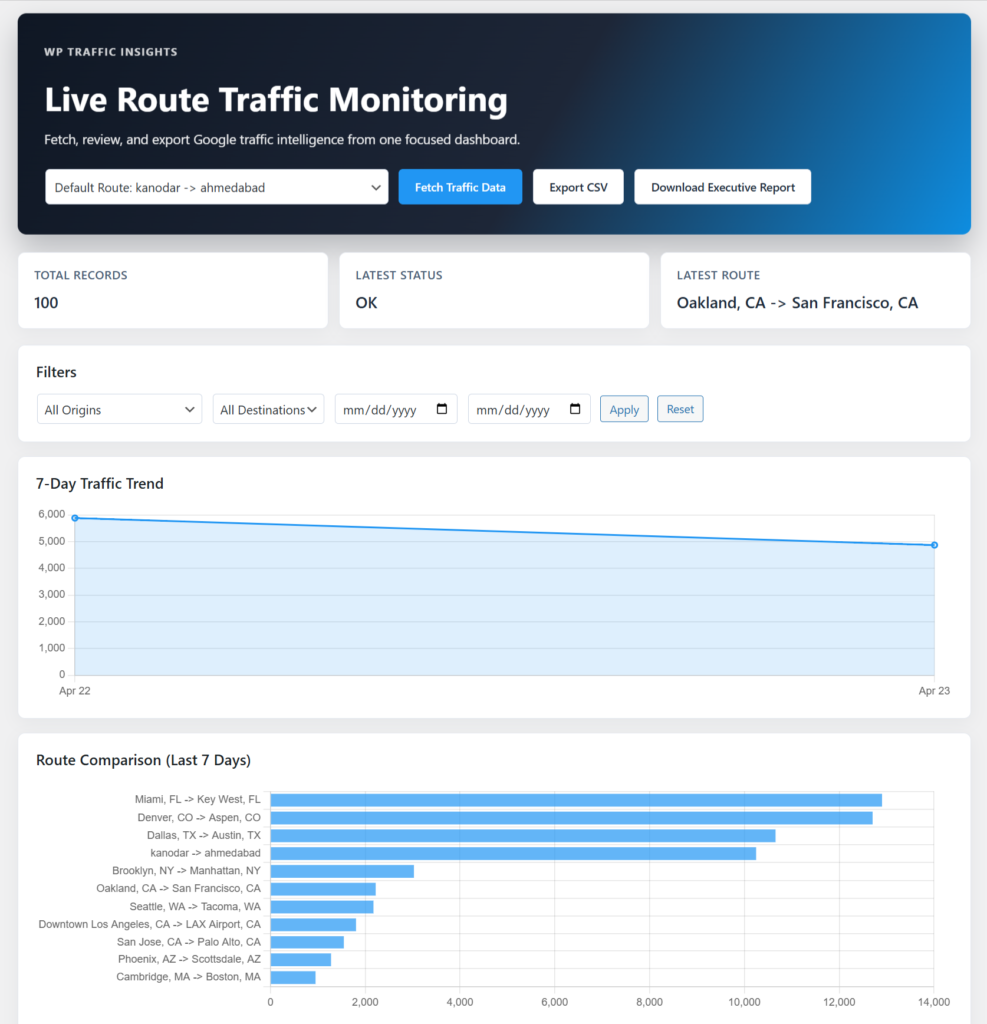
Trigger a manual traffic data fetch for any route with a single click from the admin dashboard. Instantly see the current travel time, distance, and traffic conditions without leaving WordPress. Useful for real-time checks before dispatching drivers or scheduling appointments.
Automated Hourly Data Collection via Cron
WP Traffic Insights includes an automatic hourly cron job that silently collects traffic data for all your defined routes in the background. Over time, this builds a rich historical dataset that reveals traffic patterns, peak congestion times, and long-term trends — without any manual effort.
Traffic Trend & Comparison Charts
All collected traffic data is visualized in clean dashboard charts directly inside WordPress. View travel time trends over days, weeks, and months. Compare multiple routes side by side to identify which corridors consistently perform best or worst. Charts update automatically as new data is collected.
Smart Alert System — Email, Slack & Webhook
Set traffic condition thresholds for any route. When travel time exceeds your defined limit — for example, when a normally 20-minute route starts taking over 40 minutes — WP Traffic Insights automatically sends an alert via:
- Email — to any address or distribution list
- Slack — via Slack webhook to any channel
- Webhook — to any external URL or automation platform (Zapier, Make, custom backend)
Smart cooldown controls prevent alert flooding — each alert channel has a configurable cooldown period so you only receive meaningful notifications, not a flood of repetitive messages.
Weekly Email Summary Reports
Receive a scheduled weekly email summary covering all monitored routes. The report includes average travel times, peak congestion periods, alert history, and route comparison highlights. Ideal for operations managers and agency clients who need a regular briefing without logging into WordPress.
Traffic Forecast — Best Travel Time Predictions
Based on the historical data collected by the plugin, WP Traffic Insights can forecast the best times to travel each route. Identify the optimal departure windows for each day of the week and plan schedules accordingly to minimize time lost in traffic.
CSV Export for Logs & Route Data
Export all traffic logs and route data as CSV files directly from the admin panel. Use exports for offline analysis, client reporting, spreadsheet-based planning, or importing into BI tools and dashboards.
Role-Based Access — Traffic Analyst Permission
WP Traffic Insights includes a custom WordPress user role: Traffic Analyst. Assign this role to team members or clients who need access to traffic dashboards and reports but should not have access to plugin settings, API configuration, or other WordPress admin areas.
Executive Summary Dashboard
The main dashboard provides a high-level executive summary of all monitored routes — current travel times, recent alert history, data collection status, and trend highlights. Designed to give managers and decision-makers the key information they need in a single view.

Track traffic once and make better decisions. Save time, improve route planning, and stay updated with alerts and route data.
Supports advanced routes, history logs, and reporting tools for growing businesses.
Who Is WP Traffic Insights For?
E-commerce and WooCommerce businesses with their own delivery operations that want to monitor last-mile route performance
Logistics and delivery businesses that need to monitor route conditions for drivers and dispatchers, minimize delivery delays, and track travel time performance over time
Courier and transport companies managing multiple routes and needing automated alerts when road conditions deteriorate
Field service businesses — plumbers, electricians, engineers, and technicians — that schedule appointments based on travel time and need accurate route data for planning
Office operations managers who monitor employee commute routes and want to advise staff on optimal departure times to reduce late arrivals
WordPress agencies building custom operations dashboards for logistics clients who need traffic intelligence embedded in their client portal
Developers who need a pre-built Google Distance Matrix API integration for WordPress rather than building one from scratch
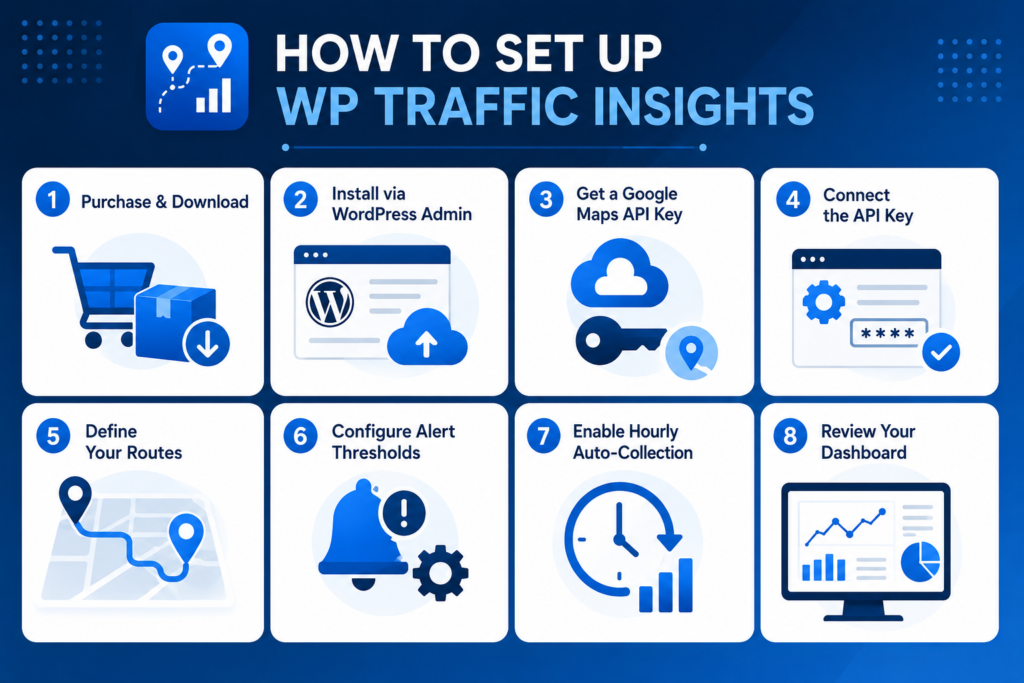
How to Set Up WP Traffic Insights
Step 1 — Purchase & Download
After purchasing WP Traffic Insights for $49, you will receive a download link via email. The plugin is delivered as a .zip file.
Step 2 — Install via WordPress Admin
Go to WordPress Admin → Plugins → Add New → Upload Plugin. Upload the .zip file, click Install Now, then Activate.
Step 3 — Get a Google Maps API Key
WP Traffic Insights requires a Google Maps API key with the Distance Matrix API enabled. If you do not already have one:
- Go to Google Cloud Console
- Create a new project or select an existing one
- Navigate to APIs & Services → Library and enable the Distance Matrix API
- Go to APIs & Services → Credentials and create an API key
- Restrict the key to the Distance Matrix API for security
Step 4 — Connect the API Key
After activation, go to WP Traffic Insights → Settings → Connection Tab. Enter your Google Maps API key and click Test Connection to verify it is working correctly.
Step 5 — Define Your Routes
Go to WP Traffic Insights → Routes and add your first route. Enter:
- Route name (e.g., “Morning Delivery — North Zone”)
- Origin address or coordinates
- Destination address or coordinates
- Travel mode (Driving recommended for most business use cases)
Save the route. Repeat for all routes you want to monitor.
Step 6 — Configure Alert Thresholds
Go to Settings → Alerts. For each route, set a travel time threshold in minutes. Choose your alert channels (Email, Slack, Webhook) and configure the smart cooldown period to prevent alert flooding.
Step 7 — Enable Hourly Auto-Collection
Go to Settings → Cron and confirm that hourly automatic data collection is enabled. This is on by default after activation. The plugin will now silently collect traffic data for all your routes every hour.
Step 8 — Review Your Dashboard
Return to the main WP Traffic Insights Dashboard after a few hours to see your first traffic charts and trend data populating. Use the Manual Fetch button on any route for an instant current reading.
WP Traffic Insights vs. Checking Google Maps Manually
| Feature | Manual Google Maps Checks | WP Traffic Insights |
| Real-time route data | Yes — manual only | Yes — one click or automatic |
| Historical data collection | No | Yes — hourly, automated |
| Traffic trend charts | No | Yes — visual charts inside WordPress |
| Automated alerts | No | Yes — Email, Slack, Webhook |
| Weekly summary reports | No | Yes — scheduled email reports |
| Forecast best travel times | No | Yes — based on historical data |
| Multi-route monitoring | Manual tab switching | All routes in one dashboard |
| CSV data export | No | Yes — one-click export |
| Team/client access control | No | Yes — Traffic Analyst role |
| Time cost | High — manual checks required | Low — runs automatically |
Frequently Asked Questions
What is WP Traffic Insights?
WP Traffic Insights is a WordPress plugin that uses the Google Distance Matrix API to monitor live and historical road traffic conditions for business-defined routes. It collects travel time data automatically, displays it in dashboard charts, sends alerts when conditions change, and lets you export data as CSV — all inside WordPress.
What is the Google Distance Matrix API?
The Google Distance Matrix API is an official Google Maps Platform service that returns travel time and distance data between origins and destinations based on real-time and historical traffic conditions. It is the same underlying technology that powers travel time estimates in Google Maps. Using this API requires a Google Cloud account and API key; Google provides a free monthly usage credit that covers moderate usage for most small businesses.
Do I need coding skills to use this plugin?
No. WP Traffic Insights is designed for non-developers. After entering your Google API key and defining your routes through the admin panel, the plugin handles all data collection and display automatically. No PHP, JavaScript, or API coding knowledge is required.
How often does the plugin collect traffic data?
The plugin includes an automatic hourly cron job that collects traffic data for all defined routes in the background. You can also trigger a manual fetch at any time from the dashboard for an instant reading.
What alert types are supported?
WP Traffic Insights supports three alert channels: Email (to any email address), Slack (via Slack incoming webhook), and Webhook (POST request to any external URL). Each channel has a configurable cooldown period to prevent duplicate alerts.
How many routes can I monitor?
There is no hard limit on the number of routes you can define. However, each route check consumes Google Distance Matrix API credits. Keep your Google API usage within your monthly free credit to avoid charges, or configure billing in Google Cloud Console for high-volume usage.
Will this plugin work for international routes?
Yes. The Google Distance Matrix API supports routes in any country where Google Maps has road data. You can monitor routes across different countries and regions within the same plugin installation.
Can I give a client access to the traffic dashboard without giving them full WordPress admin access?
Yes. WP Traffic Insights includes a custom Traffic Analyst user role. Users assigned this role can view dashboards, charts, and reports but cannot access plugin settings, API configuration, or other WordPress admin areas.
Does it work with WooCommerce?
WP Traffic Insights is not a WooCommerce-specific plugin, but it is fully compatible with WooCommerce sites. Businesses using WooCommerce for order management who also manage their own delivery operations can use WP Traffic Insights to monitor delivery route performance alongside their store.
Is the Google API key included with the plugin?
No. You need your own Google Maps API key with the Distance Matrix API enabled. The key is obtained from the Google Cloud Console and is separate from the WP Traffic Insights plugin license. Google provides a free monthly credit (currently $200/month) that covers the Distance Matrix API usage for most small-to-medium businesses.
What support is included?
WP Traffic Insights includes email support from the WP Codex Plugins team. Contact us through the support page for help with setup, API configuration, or any usage questions.
Pricing
WP Traffic Insights is available for a one-time payment of $49. This includes the plugin download, all future updates, and email support. No annual renewal required.