
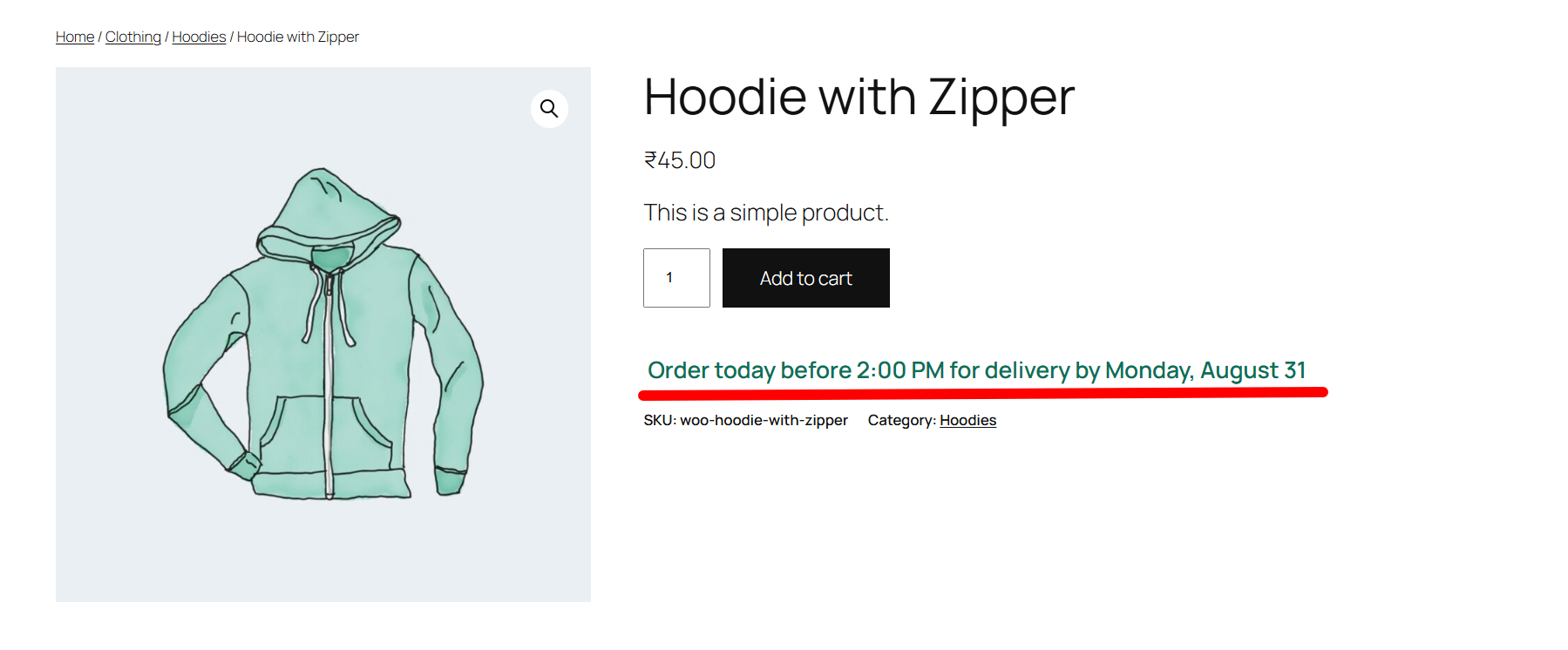
Showing a delivery estimate next to the Add to Cart button is one of the simplest ways to reduce hesitation at the point of purchase. Most of the tools that offer this are paid plugins, but the logic behind it is straightforward enough to handle with a single snippet – including skipping weekends and accounting for a daily order cutoff time.
The Snippet
/**
 * Show an estimated delivery date on the single product page.
 * Skips weekends and accounts for a daily order cutoff time.
 */
add_action( 'woocommerce_after_add_to_cart_form', 'wpcodex_estimated_delivery_date' );
function wpcodex_estimated_delivery_date() {

    global $product;

    // Skip virtual and downloadable products - no physical delivery needed
    if ( $product->is_virtual() || $product->is_downloadable() ) {
        return;
    }

    $cutoff_hour     = 14; // 2 PM cutoff - change to match your dispatch time
    $processing_days = 1;  // Business days needed to prepare the order before dispatch

    $current_time = current_time( 'timestamp' );
    $cutoff_today = strtotime( date( 'Y-m-d', $current_time ) . ' ' . $cutoff_hour . ':00:00' );
    $past_cutoff  = $current_time > $cutoff_today;

    $start_date    = $past_cutoff ? strtotime( '+1 day', $current_time ) : $current_time;
    $delivery_date = strtotime( '+' . $processing_days . ' days', $start_date );

    // Skip weekends (0 = Sunday, 6 = Saturday)
    while ( in_array( date( 'w', $delivery_date ), array( 0, 6 ) ) ) {
        $delivery_date = strtotime( '+1 day', $delivery_date );
    }

    $formatted_date = date_i18n( 'l, F j', $delivery_date );
    $cutoff_time    = date_i18n( 'g:i A', $cutoff_today );

    if ( $past_cutoff ) {
        $message = sprintf( 'Order now for delivery by %s', $formatted_date );
    } else {
        $message = sprintf( 'Order today before %s for delivery by %s', $cutoff_time, $formatted_date );
    }

    echo '<p class="wpcodex-delivery-estimate" style="margin-top:10px; font-weight:600; color:#0F6E56;">' . esc_html( $message ) . '</p>';
}
What to adjust:
$cutoff_hour– the hour (24-hour format) after which same-day processing no longer applies$processing_days– how many business days you need before the order ships
The snippet checks the current time against your cutoff, adds the processing days, then walks forward day by day skipping any Saturday or Sunday, so the date shown is always a realistic dispatch day. We used this same skip-and-check date logic in our WooCommerce Vacation Mode snippet, just applied to a closure window instead of weekends.
Method 2: Let Store Owners Set It Per Product (No Hardcoding)
Method 1 uses one fixed cutoff time and processing time for every product. That’s fine for a store where everything ships the same way, but it falls short the moment some products need more processing time than others – a made-to-order item versus something already sitting in stock, for example.
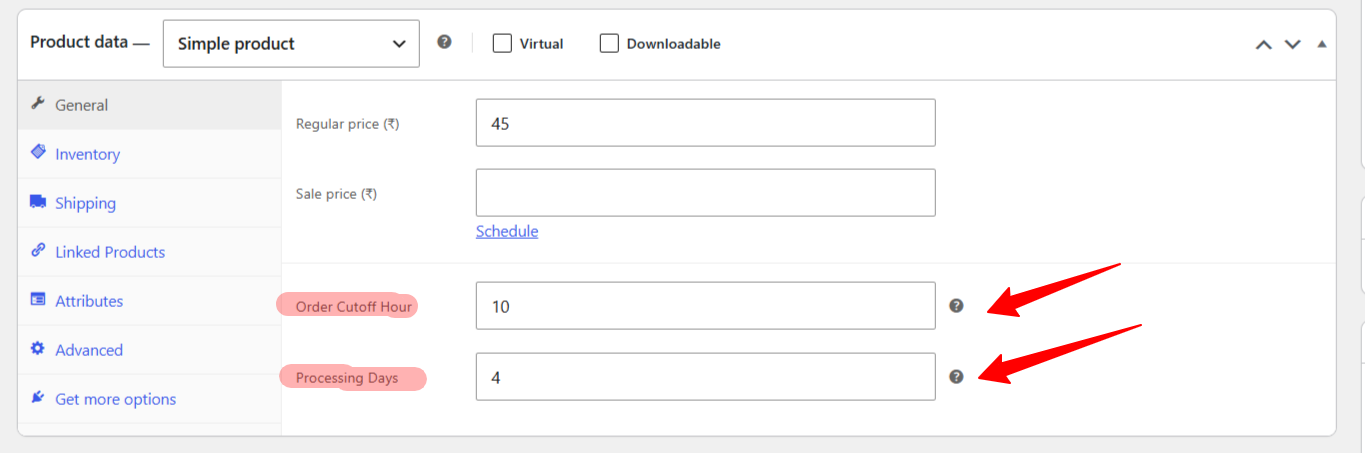
This version adds two fields directly to the product edit screen, so each product can have its own values, with the site-wide defaults used as a fallback when a product doesn’t set anything.
Step 1 – Add the fields to Product Data > General
/**
 * Add per-product delivery settings to the Product Data > General tab.
 */
add_action( 'woocommerce_product_options_general_product_data', 'wpcodex_add_delivery_fields' );
function wpcodex_add_delivery_fields() {

    echo '<div class="options_group">';

    woocommerce_wp_text_input( array(
        'id'                => '_wpcodex_cutoff_hour',
        'label'             => __( 'Order Cutoff Hour', 'woocommerce' ),
        'placeholder'       => 'e.g. 14 (24-hour format)',
        'desc_tip'          => true,
        'description'       => __( 'Hour after which same-day processing no longer applies. Leave blank to use the site default.', 'woocommerce' ),
        'type'              => 'number',
        'custom_attributes' => array( 'min' => '0', 'max' => '23' ),
    ) );

    woocommerce_wp_text_input( array(
        'id'                => '_wpcodex_processing_days',
        'label'             => __( 'Processing Days', 'woocommerce' ),
        'placeholder'       => 'e.g. 1',
        'desc_tip'          => true,
        'description'       => __( 'Business days needed before this product ships. Leave blank to use the site default.', 'woocommerce' ),
        'type'              => 'number',
        'custom_attributes' => array( 'min' => '0' ),
    ) );

    echo '</div>';
}
Step 2 – Save the fields when the product is updated
add_action( 'woocommerce_process_product_meta', 'wpcodex_save_delivery_fields' );
function wpcodex_save_delivery_fields( $post_id ) {

    if ( isset( $_POST['_wpcodex_cutoff_hour'] ) ) {
        update_post_meta( $post_id, '_wpcodex_cutoff_hour', sanitize_text_field( $_POST['_wpcodex_cutoff_hour'] ) );
    }

    if ( isset( $_POST['_wpcodex_processing_days'] ) ) {
        update_post_meta( $post_id, '_wpcodex_processing_days', sanitize_text_field( $_POST['_wpcodex_processing_days'] ) );
    }
}
Step 3 – Use the per-product values, with site-wide defaults as a fallback
/**
 * Show an estimated delivery date using per-product settings, falling back to site defaults.
 */
add_action( 'woocommerce_after_add_to_cart_form', 'wpcodex_estimated_delivery_date_dynamic' );
function wpcodex_estimated_delivery_date_dynamic() {

    global $product;

    if ( $product->is_virtual() || $product->is_downloadable() ) {
        return;
    }

    $product_id = $product->get_id();

    $default_cutoff_hour     = 14; // Site-wide fallback
    $default_processing_days = 1;  // Site-wide fallback

    $cutoff_hour     = get_post_meta( $product_id, '_wpcodex_cutoff_hour', true );
    $processing_days = get_post_meta( $product_id, '_wpcodex_processing_days', true );

    $cutoff_hour     = ( '' !== $cutoff_hour ) ? (int) $cutoff_hour : $default_cutoff_hour;
    $processing_days = ( '' !== $processing_days ) ? (int) $processing_days : $default_processing_days;

    $current_time = current_time( 'timestamp' );
    $cutoff_today = strtotime( date( 'Y-m-d', $current_time ) . ' ' . $cutoff_hour . ':00:00' );
    $past_cutoff  = $current_time > $cutoff_today;

    $start_date    = $past_cutoff ? strtotime( '+1 day', $current_time ) : $current_time;
    $delivery_date = strtotime( '+' . $processing_days . ' days', $start_date );

    while ( in_array( date( 'w', $delivery_date ), array( 0, 6 ) ) ) {
        $delivery_date = strtotime( '+1 day', $delivery_date );
    }

    $formatted_date = date_i18n( 'l, F j', $delivery_date );
    $cutoff_time    = date_i18n( 'g:i A', $cutoff_today );

    if ( $past_cutoff ) {
        $message = sprintf( 'Order now for delivery by %s', $formatted_date );
    } else {
        $message = sprintf( 'Order today before %s for delivery by %s', $cutoff_time, $formatted_date );
    }

    echo '<p class="wpcodex-delivery-estimate" style="margin-top:10px; font-weight:600; color:#0F6E56;">' . esc_html( $message ) . '</p>';
}
Use all three parts together, and don’t run this alongside Method 1’s function – both hook into the same action, so running both would show the message twice.
Where to find it: open any product, go to Product data > General, and scroll down. You’ll see “Order Cutoff Hour” and “Processing Days” fields. Leave them blank to use the site default, or set specific values for that one product – useful for a made-to-order item that needs 5 processing days while the rest of your catalog only needs 1.
Where to Add This Code
- Your child theme’s
functions.php, or - A site-specific plugin (recommended – it survives theme updates), or
- A code snippets plugin like WPCode or Code Snippets
Troubleshooting
The date shown doesn’t account for public holidays.
This snippet only skips weekends. If you need to exclude specific holiday dates too, add an array of holiday dates and check against it inside the same while loop that currently only checks for weekends.
The message isn’t appearing on the product page.
Confirm the product is not set as virtual or downloadable, since the snippet intentionally skips those. Also check your theme actually calls the woocommerce_after_add_to_cart_form hook – most standard WooCommerce-compatible themes do, but heavily customized product page templates sometimes remove it.
Can I show a different cutoff time or processing time for specific products?
Yes – that’s exactly what Method 2 above is for. It adds the fields directly to the product edit screen instead of requiring you to edit the code every time.
FAQ
Will this affect page load speed?
No. The calculation is simple date math that runs once per page load, with no database queries or external API calls involved.
Does this work with variable products?
Yes, since the message is tied to the product page itself rather than a specific variation – it will show regardless of which variation the customer selects.
Can I display this on the shop page too, not just single product pages?
Yes, but you would need to hook into a shop-loop-specific action like woocommerce_after_shop_loop_item instead, and consider a shorter version of the message since space is more limited in a grid layout.
Should I use Method 1 or Method 2 if all my products ship the same way?
Method 1 is simpler and enough if every product in your store follows the same processing time and cutoff. Method 2 only becomes useful once you have at least a few products that genuinely need different timing – made-to-order items, pre-orders, or products sourced from a different warehouse.